
Features You Asked For, Online Now
Finer Control Over the Layout and Design of Your Site
We improve SimDif every week. Recently you've seen the Kai Graphic Theme Creator, the new text cleaner, and the new font sets. There were also important improvements to the management of Multilingual Sites, and to the Optimization Assistant that appears when you publish.
This newsletter announces three small quality-of-life updates many users have asked us for. All three give you more control over the design of your site.
Disable the Slideshow for a Picture
On your published site, when a visitor clicks an image, they enter a slideshow that cycles through all the pictures on that page. But some images aren't meant to be looked at on their own: a decorative line, a logo, a QR code. You can now leave them out of the slideshow, so it shows only the pictures that deserve the spotlight.
Just tap on the image in a block, and switch the slideshow off for that picture.
Links on Images
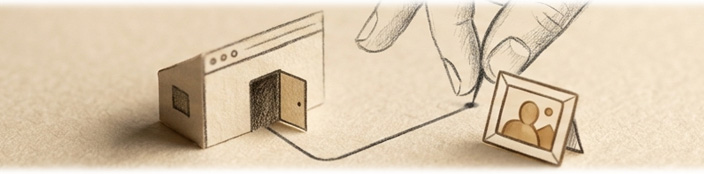
This one has been requested for a long time. Fifteen years ago, at the start of SimDif, we chose not to offer it. It sounds like an obvious feature, and a link is easy to add. But a link on a picture is not easy to use well. Visitors expect different things from an image depending on what it shows, and a link on the wrong image often sends them away from the page they came for.
For Pro users today, that precaution no longer makes sense. You can now add a link to an image. Use it for a product photo that leads to its page, a partner logo, or a portrait that opens a profile.
Tap on an image and look for the link address field.
The Space Around Your Text and Blocks
On a Pro site, the Theme editor gives you control over most of the graphic aspects of your site, letting you create your own Themes. We've just gone one step further. You can now control the margins and white space around your blocks. The settings are available separately for your Site Title, Page Titles, Block Titles, and even the H3 titles inside your text blocks.
The effect is often subtle, but it makes a real difference. It's one of the easiest ways to give your site a look that feels like yours.
Open Graphic Customization using the brush icon, go to your Theme, and tap the pencil icon to edit it. Then select Fonts, tap the pencil to edit, and try adjusting a few Margin values. The preview button shows you the result before you save.
Bonus: Not New, but Often Overlooked
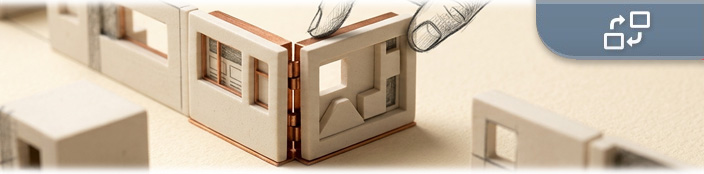
Have you noticed the small icon with two rectangles in the top right corner of each block? It's been there since you started your site, and many people never tap it.
This icon lets you change the layout of that one block. A block with a small image on the left can become one with a large image, or one with the text on the left and the image on the right. Your words and your picture are kept, only their position changes. There's nothing to retype and nothing to upload again.
If a page feels a little monotonous, changing the layout of one or two blocks is a quick way to give it some variety.